Sunday, August 4, 2019

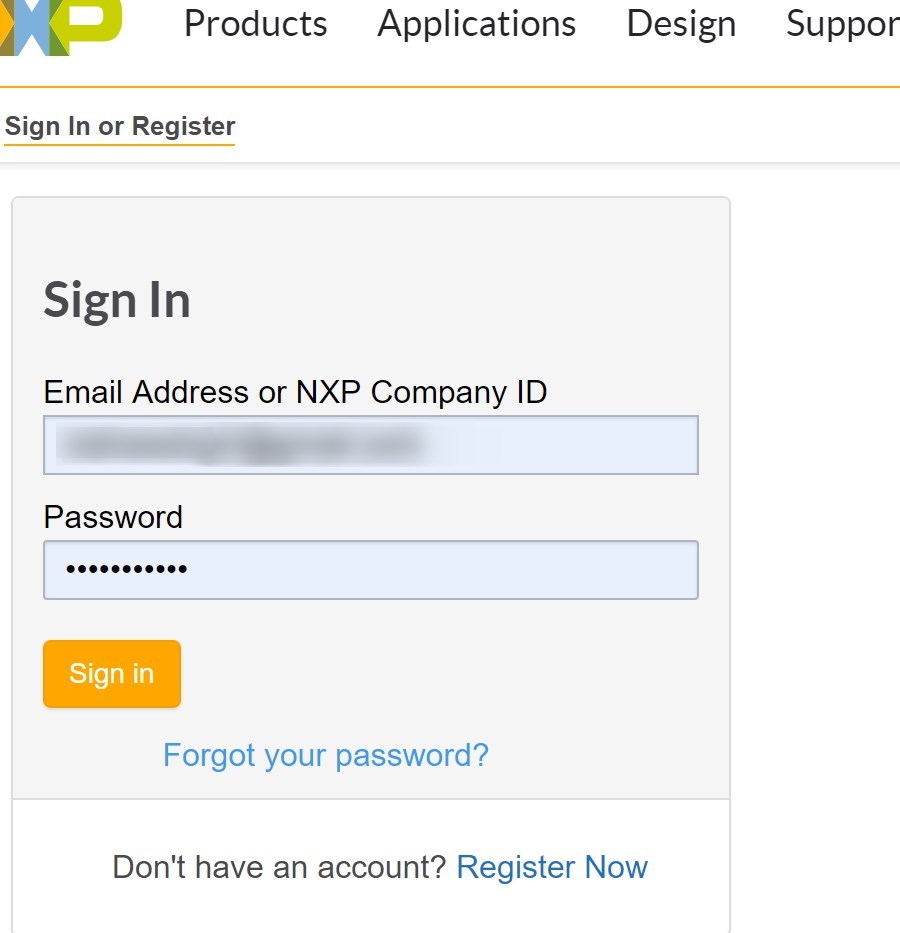
Unable to sign-in to NXP Jive website - Solved

Some of the example projects of NXP devices are listed in this website  https://freescale.jiveon.com/docs/DOC-329623
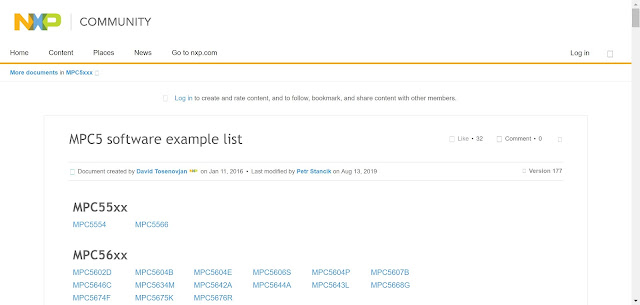


It first leads to the following webpage:
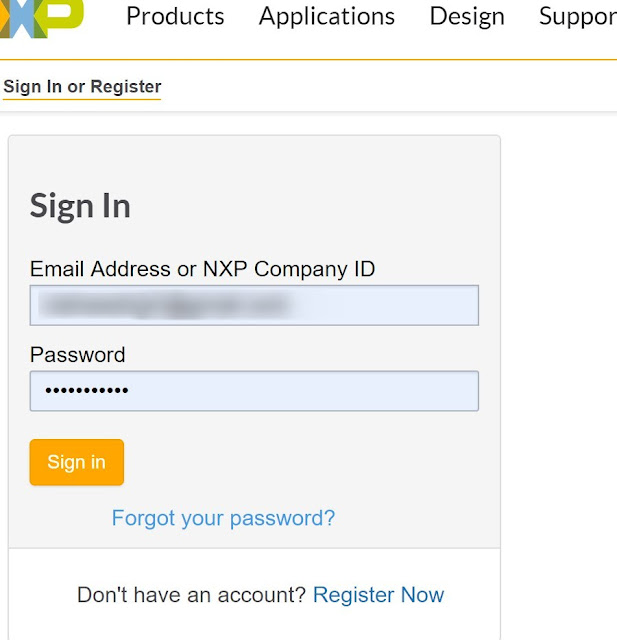


It's easy to register and sign-in here.
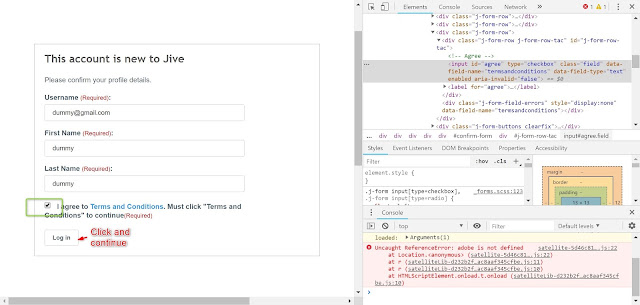
Once signed-in, It leads to Jive sign-in page:
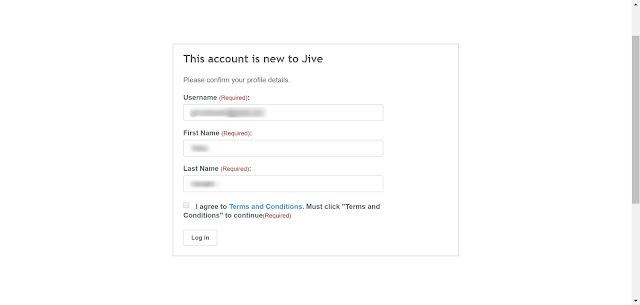


This page requires Javascript to be enabled in browser.
Even when javascript enabled the checkbox for Agreeing terms and conditions remain disabled which makes you unable to access the example project.
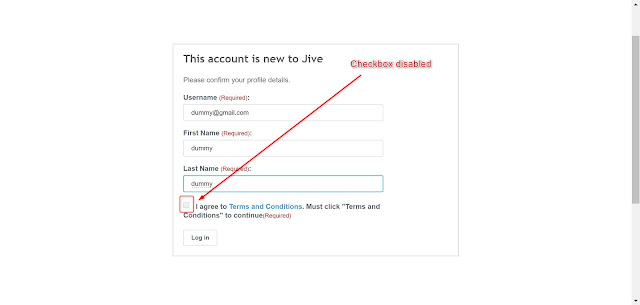


Solution:
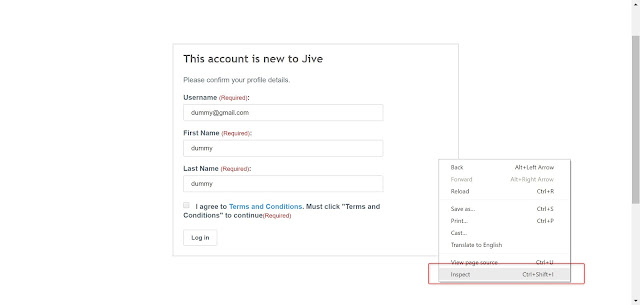
Right click on the web-page and select "Inspect".


Then press Ctrl+Shift+C which allows you to select elements on the page.
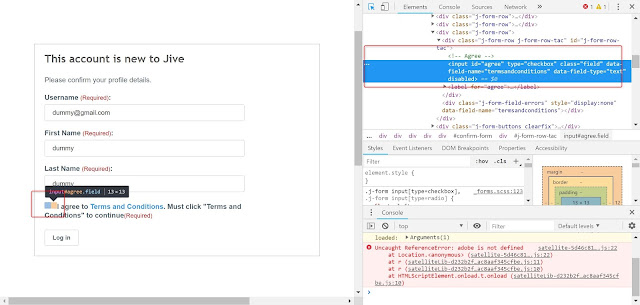


Then click on the checkbox. On the right-side code, edit the "disabled" tag to "enabled"
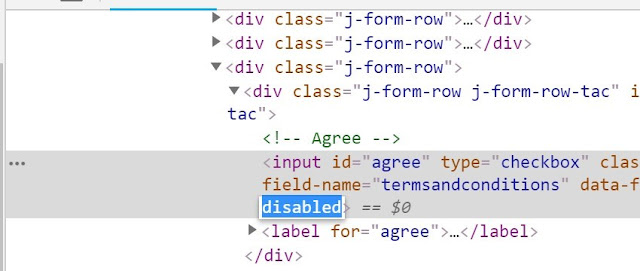


V
V
V
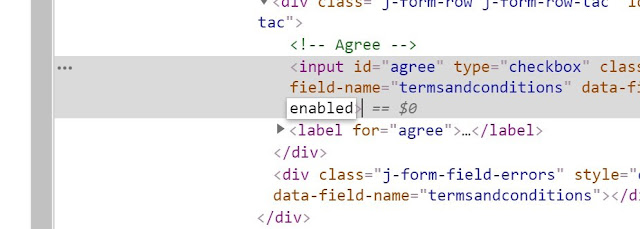


Done. Login will be successful. This method is required only-once. Next time you will be signed-in to Jive without this blockage.


Thursday, March 7, 2019

How to download Hotstar Video offline using Videoder

Videoder is an application that allows you to download videos from online video streaming websites. They market themselves as YouTube downloader but also provide support for a lot of other websites as well. Snap from their website:

In their Android application they recently have stopped support for watching videos downloaded from hotstar website from other Video application telling that the videos are being misused. The downloaded videos won't show-up in gallery but still can be viewed offline through Videoder application only.

I was just curious to check how these videos are saved in the phone memory and did a small digging to see that these videos are not encrypted but just hidden from the plain sight. So if you want to view/ copy the downloaded files to your laptop/USB, follow the steps below after downloading the video from Videoder (downloading steps are given in videoder website):

Step 1: Enable Show Hidden files option in your SD card. I used ES-File Explorer.

Step 2: Then go to Videoder folder, where you will find hidden folder named .cp_data


Step 3: Inside that folder, you will find your downloaded video in proper format playable on any media player. Cut it and paste it in any other folder of your SD card. Later you may transfer it to PC etc.


*The trick is working as of 7th March 2019.

Sunday, November 4, 2018

Decrypting .eslock files

Hello!

I think it's been almost 8 years since ES file explorer is in android market. They are one of the pioneer android developers. So most of us have this explorer in our android. I too had this for a long time. If you are familiar with the app, you may know about the encryption feature available in this app. If you don't know here's how:
http://www.estrongs.com/eshelp/en/securityFeatures.htm#_Toc406426549

I had some old files whose password was not known to me. Obviously I started browsing pages to decrypt the .eslock files. I came across this blog:
http://techackit.blogspot.com/2015/08/es-file-explorer-encrypted-file.html

The blog does not clearly tells how to decrypt the files. But gives a major hint though!
eslock files store MD5 checksum of the password in the encrypted file.

{
For nerds:
Md5 (Message Digest 5) is a cryptographic function that allows you to make a 128-bits (32 characters) "hash" from any string taken as input. This function is irreversible, you can't obtain the plain text only from the hash. The only way to decrypt your hash is to compare it with a database using online decrypter. If my password string, by any chance, available in the online database, then I will be able to recover my file.. One should know that md5, although it's very used and common, shouldn't be use to encrypt critical data, since it's not secure anymore (collisions were found by chinese scientists - you may want to see a collission demo here). I don't why eslock use MD5 still, but to me its time to explore!
}

If your password string is not too complex, you can decrypt the file. Here's how I recovered the password:

1. You need to open the *.eslock file in hex reader. I used HxD freeware. Here's the link:
https://filehippo.com/download_hxd-hex-editor/

2. Open the editor

3. Drag and drop the eslock file in to the program.

4. Now start counting the data bytes from end of the file backwards, and stop at 29th byte.

5. MD5 Checksum of your password is 16 byte data forward from the 29th byte as in the figure below:
MD5 checksum is --> acbd18db4cc2f85cedef654fccc4a4d8

6. Last step : Try your luck. There are a lot of MD5 hash databases available online that can help you to decode the hash. One good site that you can try :
https://www.md5online.org/


I was lucky enough that my password was available in their database. If you don't find your password here make sure you check in couple of other sites too.

Thank you!